Wit for books
Write the book. Then make the book.
Novels, children's books, memoirs, non-fiction. Wit keeps the writing simple while you write, and gives you the pages when you are ready for them.
Download WitSee a sample PDF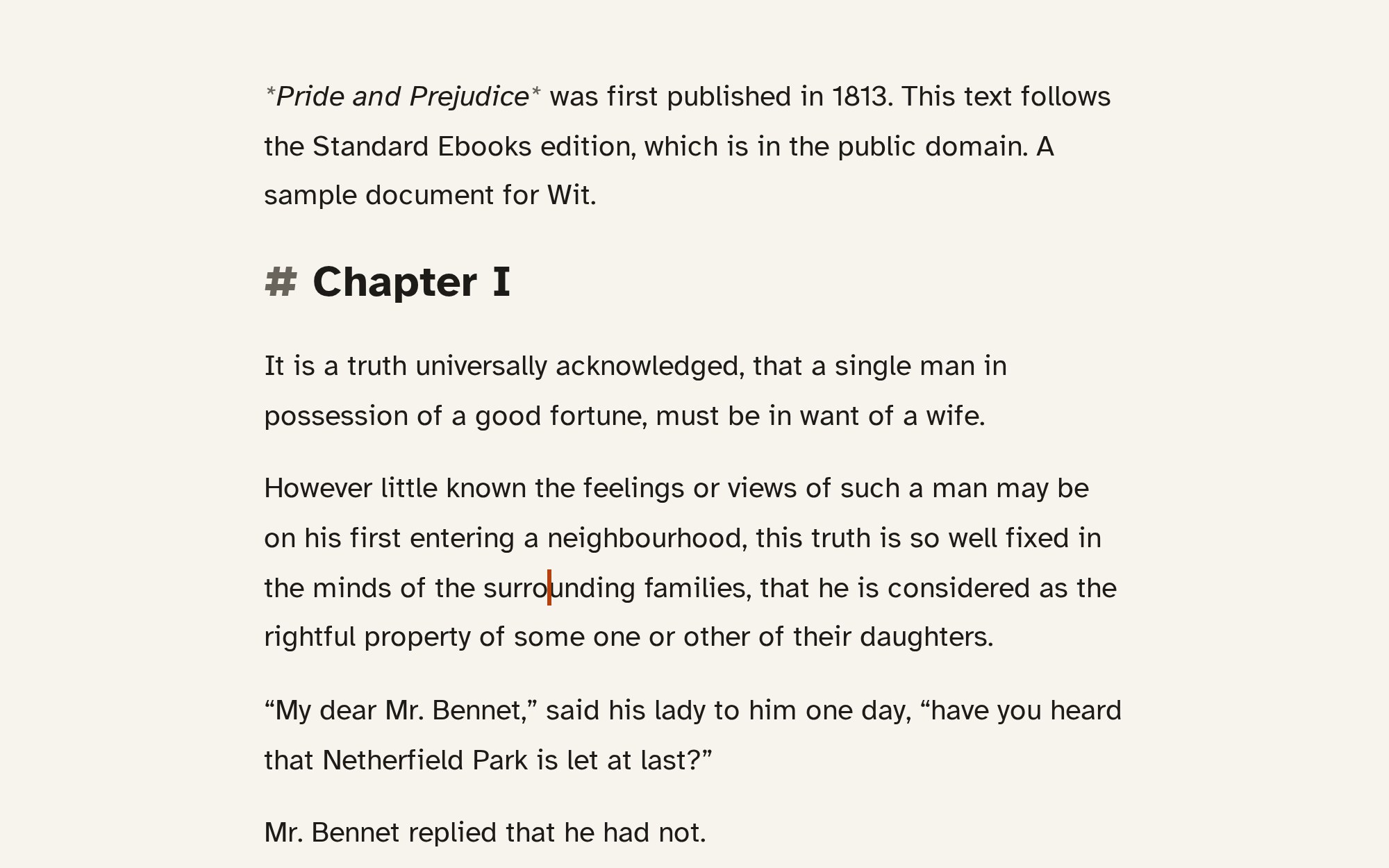
Writing
Just the text.
A book in Wit is a Markdown file: plain text, with a few simple marks for chapters, dialogue and emphasis. You never have to touch them if you don't want to; the formatting dock and the shortcuts put them in for you.
Focus mode
Alt+4 hides the toolbar and the pages, dims every paragraph except the one you are in, and keeps your cursor line in the middle of the screen. Esc brings everything back.
Themes and type
Light, Dark and a true-black Dark OLED theme. Nine editor fonts, sans, serif and mono, including Atkinson Hyperlegible for low vision. Text size and line width you can change with a keystroke.
Three views
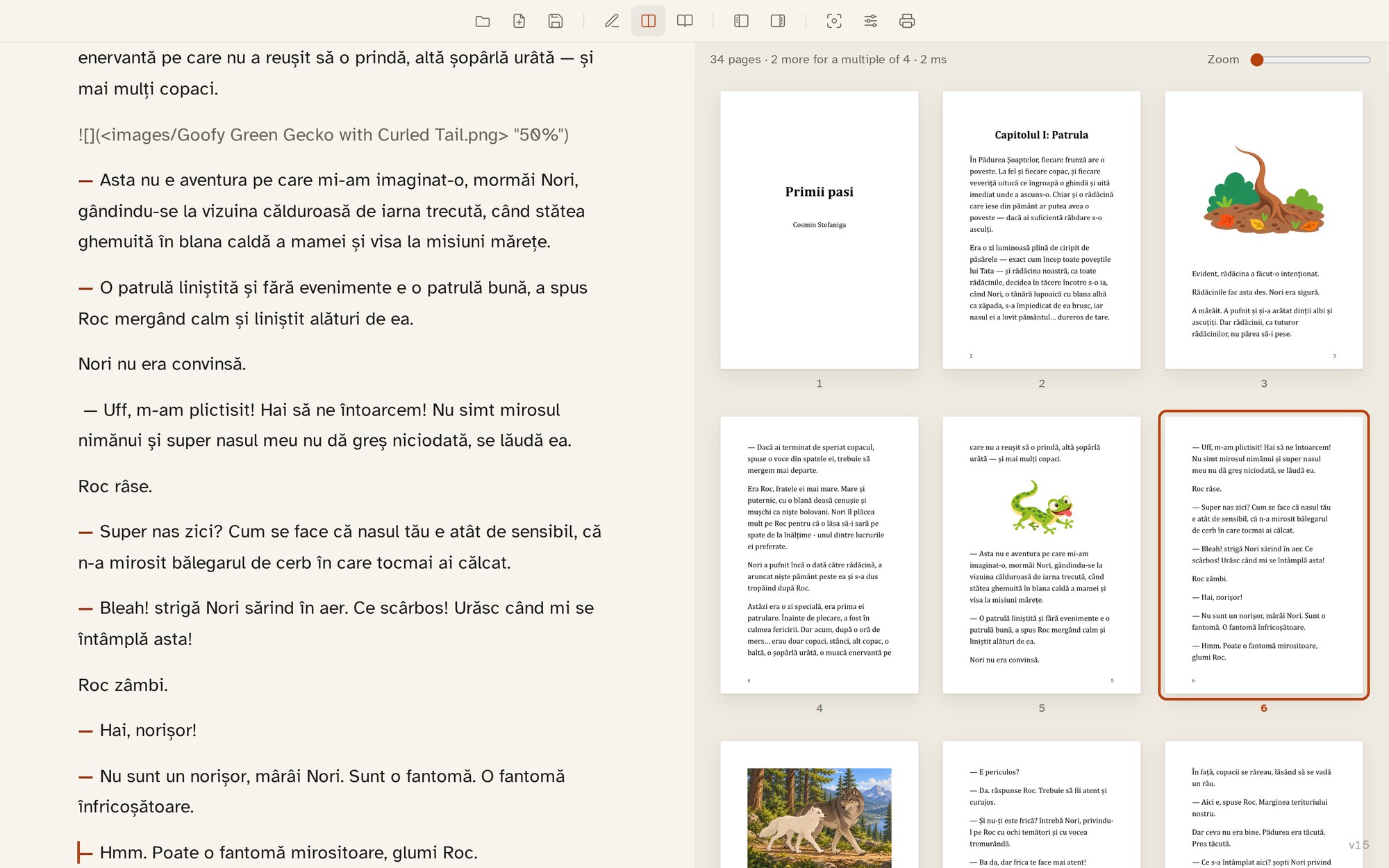
Write mode is text only. Split mode shows the pages beside the text. Page mode shows only the pages. Alt+1, Alt+2, Alt+3.
Structure
Chapters, sections and a sidebar.
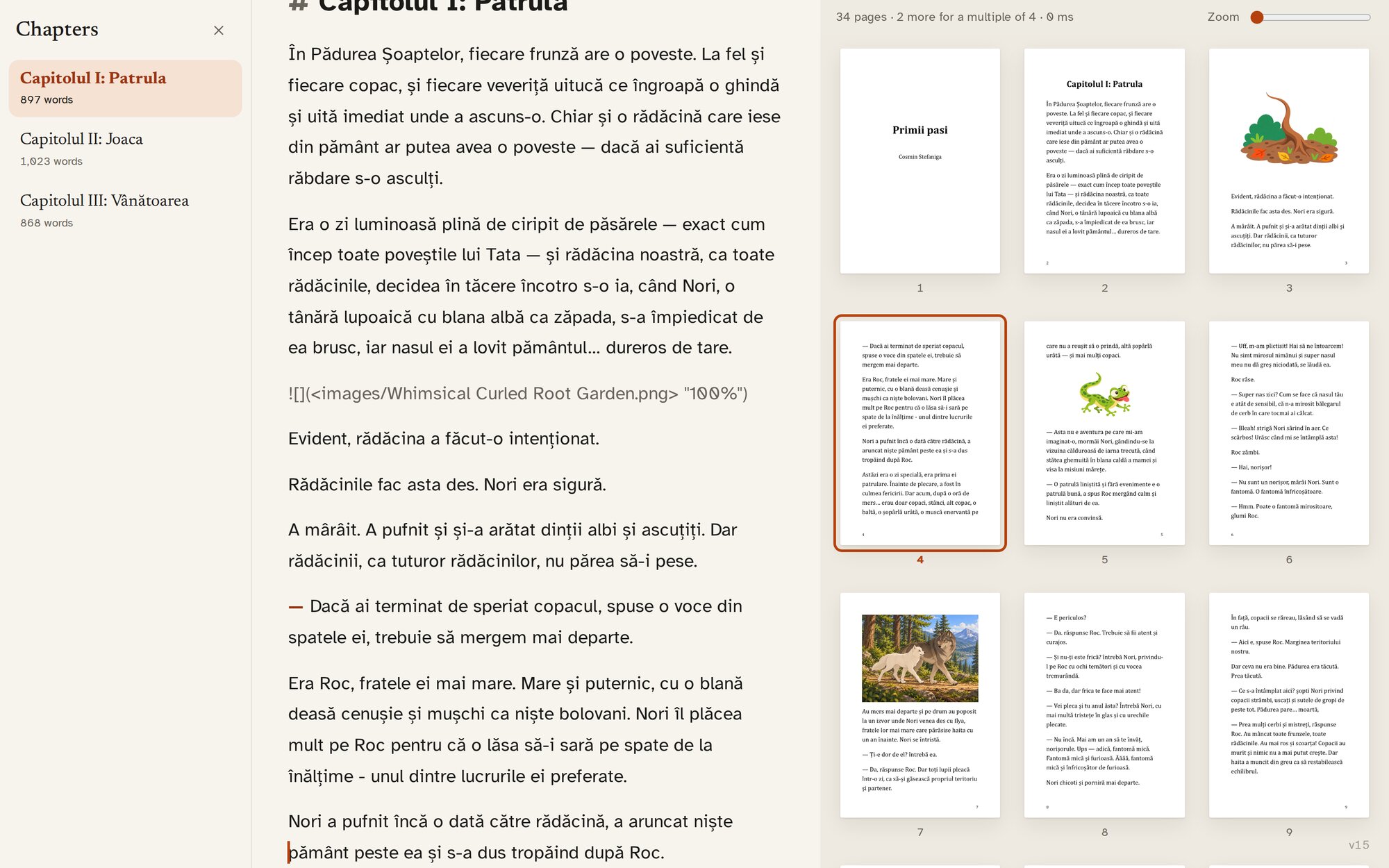
A line starting with # is a chapter; ## is a section heading. Open the chapters sidebar with Alt+[ to see every chapter with its word count and jump between them. Close it again and it is gone.
The statistics sidebar, Alt+], counts your words and pages and keeps a word or page target for each book. Set it once and watch it fill up.
Revisions
Keep every draft that matters.
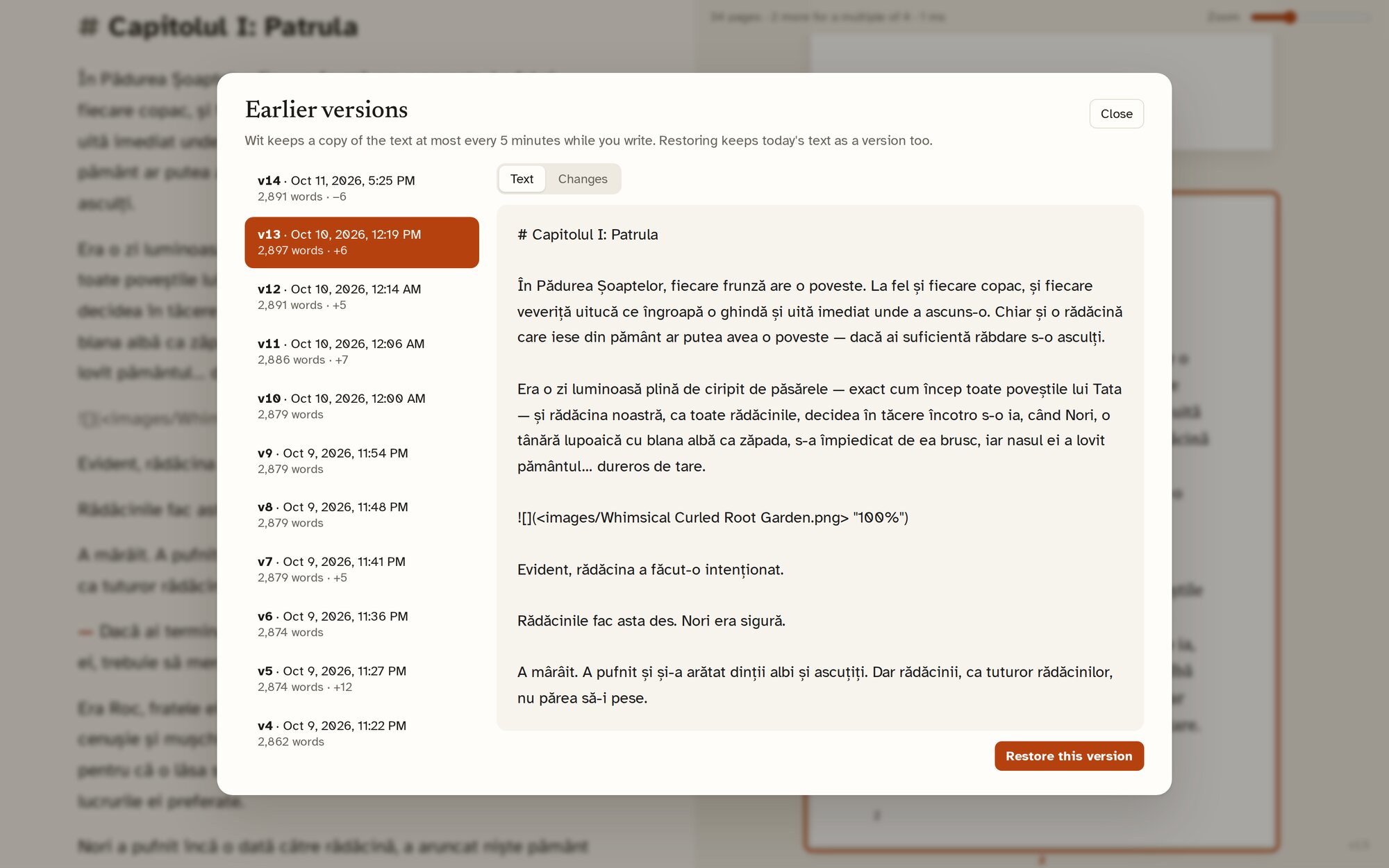
Wit saves your text a moment after you stop typing. When a draft is worth keeping, name it with Alt+Shift+S and it is kept for good. Between named revisions, Wit keeps one copy per writing day, up to ten.
Alt+H opens the revisions window: read an older draft, see what changed in it or since it, and bring it back. Going back keeps your current text as a revision first, so nothing is lost. In Split mode, Alt+C shows the chapter you are in with everything changed since the latest named revision marked.
The command palette
Every command and every setting, in one place.
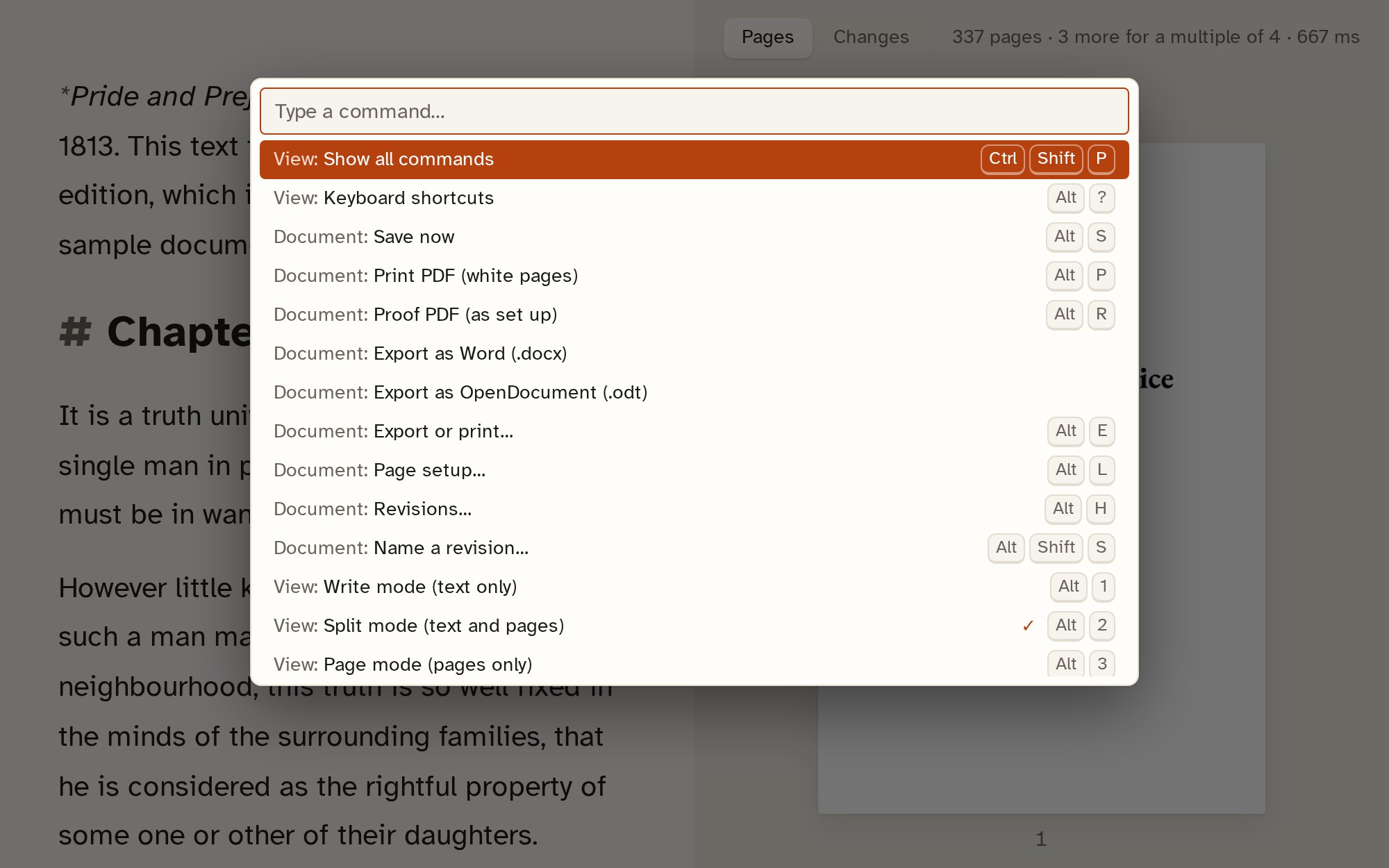
Ctrl+Shift+P opens a list of everything Wit can do, each with its shortcut. Type a few letters to find it. Recently used commands come first.
Writing in Markdown
A handful of marks.
Everything in this table has a shortcut too, and most of it is on the formatting dock (Ctrl+Space).
| You type | On the page |
|---|---|
| # Title | A chapter, starting on a new page |
| ## Title | A section heading |
| A blank line | A new paragraph |
| — at the start of a line (Ctrl+D, or type two hyphens) | A line of dialogue with a dialogue dash |
| **bold**, *italic* | Bold, italic (Ctrl+B, Ctrl+I) |
| - item or 1. item | A bulleted or numbered list |
| --- | A scene break, a centred *** |
| > text | A quoted block, in italics |
|  | An illustration at half the text width |
|  | A full-page illustration, to the edge of the page |
Spell check and hyphenation follow the language of the book: English, Romanian, German, Spanish, French, Italian, Dutch or Portuguese.
Formatting
Then, the page.
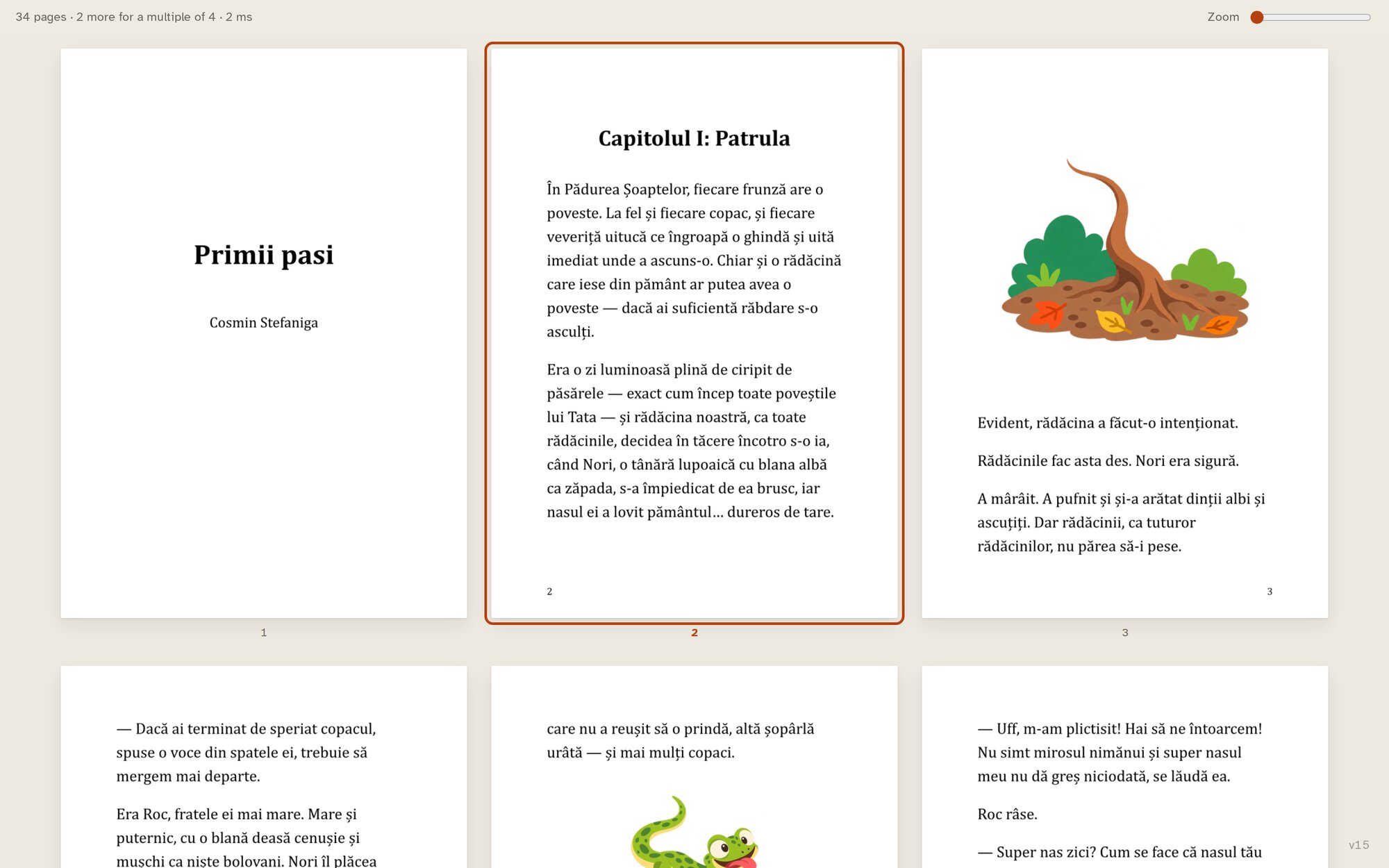
Switch to Split mode and your manuscript appears beside you as composed pages, re-set a moment after you stop typing. Move the cursor and the page it is on lights up; click a page and the text scrolls to it.
Page setup, Alt+L, is where the book takes shape: a template, a trim size, a typeface, the margins, and how chapters and page numbers behave. It writes its choices into a small settings file next to your text.
Templates
Start from a tested look.
A template sets the whole page in one step: size, margins, typeface, spacing, chapter openings and page numbers. Change any of it afterwards.
Novels
- Novel · 6 × 9 in, the common trade paperback
- Novel · 5.5 × 8.5 in digest
- Novel · 5 × 8 in
- Pocket paperback · 4.25 × 6.87 in
- UK paperback · B-format
- Hardback · Demy
- Novel · A5
- Novel · 13 × 20 cm
Non-fiction and manuscripts
- Large print · 6 × 9 in, 16 pt Atkinson Hyperlegible
- Non-fiction · 6 × 9 in
- Workbook · 8.5 × 11 in
- Manuscript · US Letter, 12 pt Courier, double-spaced
- Manuscript · A4
- Essay · A5, 6 × 9 in, US Letter or A4
Children's books
- Bedtime story · A5
- Early reader · A5 large print
- Booklet · A5 stapled
- Pocket booklet · A6 stapled
- Picture book · square 210 mm
- Picture book · 8.5 × 8.5 in
- Picture book · 8 × 10 in
Trim sizes
The sizes printers expect.
Every paperback size on Amazon KDP's list, the mass-market and UK sizes, the ISO A and B sizes, square picture books and a custom size of your own, from 50 to 500 mm.
| Group | Sizes |
|---|---|
| US trade sizes (KDP, IngramSpark) | 5 × 8, 5.06 × 7.81, 5.25 × 8, 5.5 × 8.5, 6 × 9, 6.14 × 9.21, 6.69 × 9.61, 7 × 10, 7.44 × 9.69, 7.5 × 9.25, 8 × 10, 8.5 × 11 in |
| Pocket and mass-market | 4.25 × 6.87 in, 4.37 × 7 in, A-format 110 × 178 mm, A6 |
| UK and Europe | B-format 129 × 198 mm, 13 × 20 cm, Demy 138 × 216 mm, Royal 156 × 234 mm |
| ISO paper sizes | A5, B6, B5, A4 |
| Square and landscape | 8.5 × 8.5 in, 8.25 × 8.25 in, 210 × 210 mm, 200 × 200 mm, 8.25 × 6 in landscape |
Typography
Ten open fonts ship with Wit: EB Garamond, Crimson Pro, Libre Baskerville, Literata, Lora, Alegreya, Source Serif 4, Andika, Atkinson Hyperlegible and Courier Prime. Page setup also lists every font installed on your computer.
Set the text size and line height, justify or leave a ragged edge, hyphenate or not, indent first lines or leave space between paragraphs.
Chapters and pages
Start each chapter on a new page, or on a right-hand page. Set the size and alignment of chapter titles. Add a title page. Put page numbers at the bottom outside edge or the bottom centre, at the size you want.
Bleed and margins are set in millimetres, with the inner margin separate from the outer one.
Illustrations
Put an image file in the book's images folder and name it in the text, with the width you want. A spot illustration sits at 70% of the text width unless you say otherwise; a full-page illustration runs to the edge of the page, into the bleed.
Print checklist
Catch it before the printer does.
Page setup keeps a checklist beside your pages while you work. On a KDP size it checks KDP's rules: at least 24 pages, a spine-side margin wide enough for the page count, the outside margins, and a 0.125 in bleed when you use one. On other sizes it checks that the page count is a multiple of four, which stapled and folded booklets need.
Every illustration is checked at the size it is placed, so you know before you order whether it will print sharp.
Every printer has its own requirements. Check your proof against theirs before you order.
Export
Four ways out.
Alt+E opens the export window. The desktop app saves through the usual file dialog.
Print PDF
White pages, ready for the printer. Alt+P.
Proof PDF
The pages exactly as set up, including dark proofing pages if you use them, for checking on screen. Alt+R.
Word (.docx)
A manuscript for an editor: A4, Times New Roman 12 pt, one-and-a-half spacing, each chapter on a new page. Opens in Word, Pages and Google Docs.
OpenDocument (.odt)
The same manuscript for LibreOffice and other open tools.
Start your book in Wit.
Free for Windows, macOS and Linux. Your files stay yours.
Download WitRead the guide: from manuscript to a print PDF